Usage with Roo Code in VSCode
NWS Managed AI Models can be integrated into IDEs, similar to models like GitHub Copilot, Google Gemini, or Claude Code.
For VSCode, the Roo Code plugin can be used.
Roo Code enables running VSCode‑compatible coding agents directly in JetBrains IDEs, ideal for working with OpenAI‑compatible APIs such as the NWS Managed AI Models.
Step 1 – Open VS Code and open the Extensions view
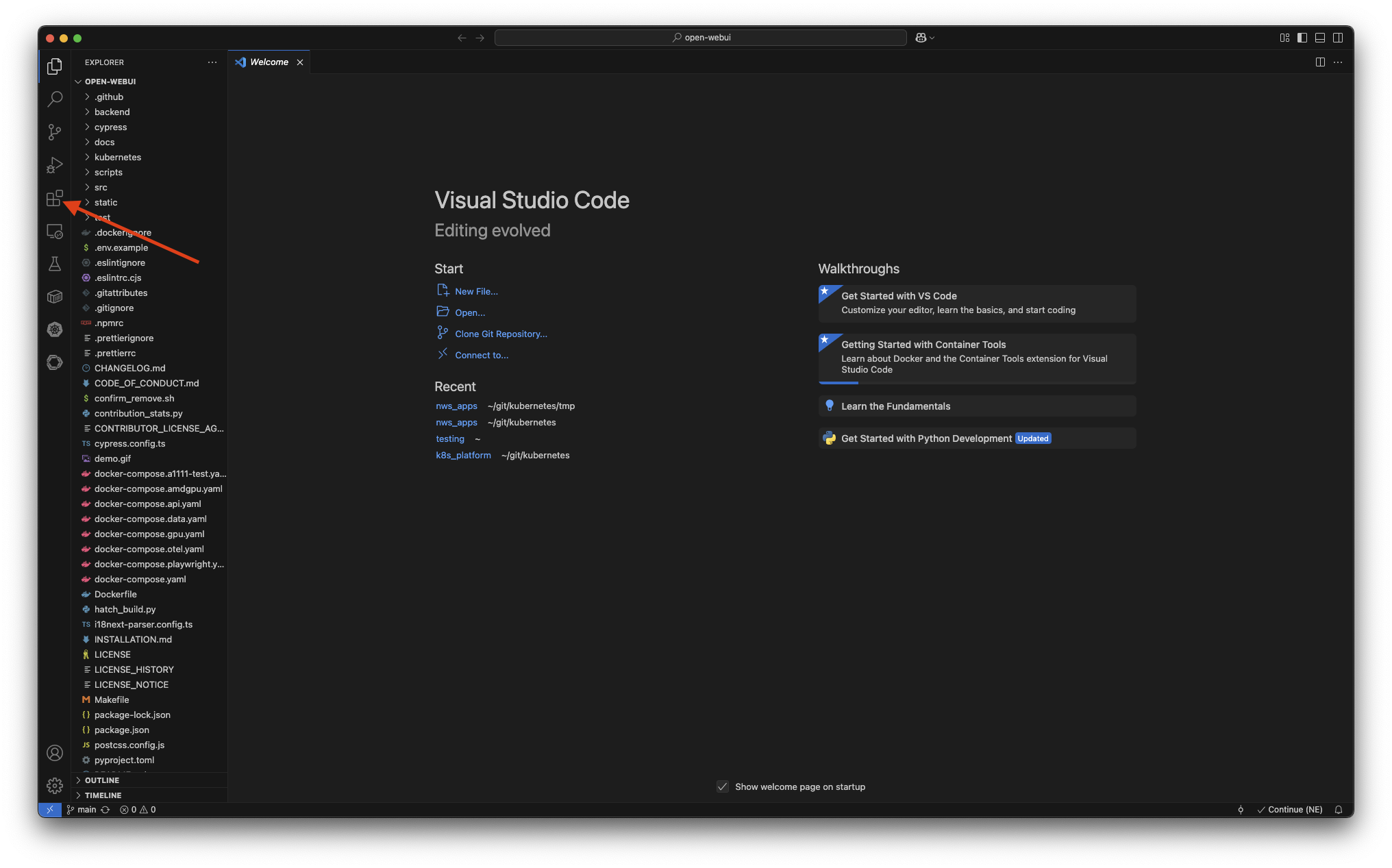
Open Visual Studio Code and click the Extensions icon in the left sidebar. There you can search for and install extensions.
Step 2 – Install Roo Code
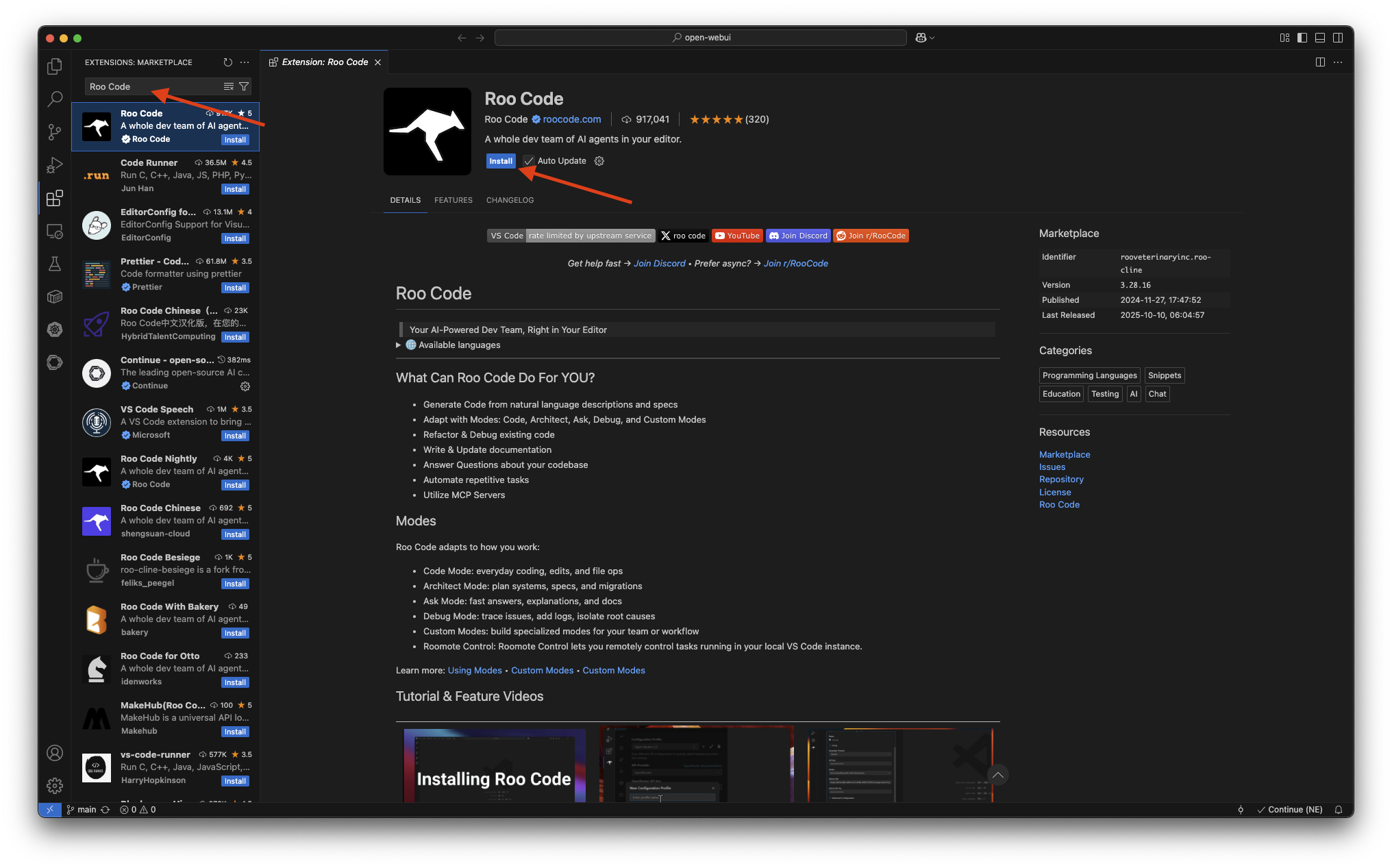
Enter "Roo Code" in the search field at the top. The plugin appears in the list of available extensions. Click the Roo Code plugin to open its detail view and install it.
Step 3 – Open the Roo Code plugin
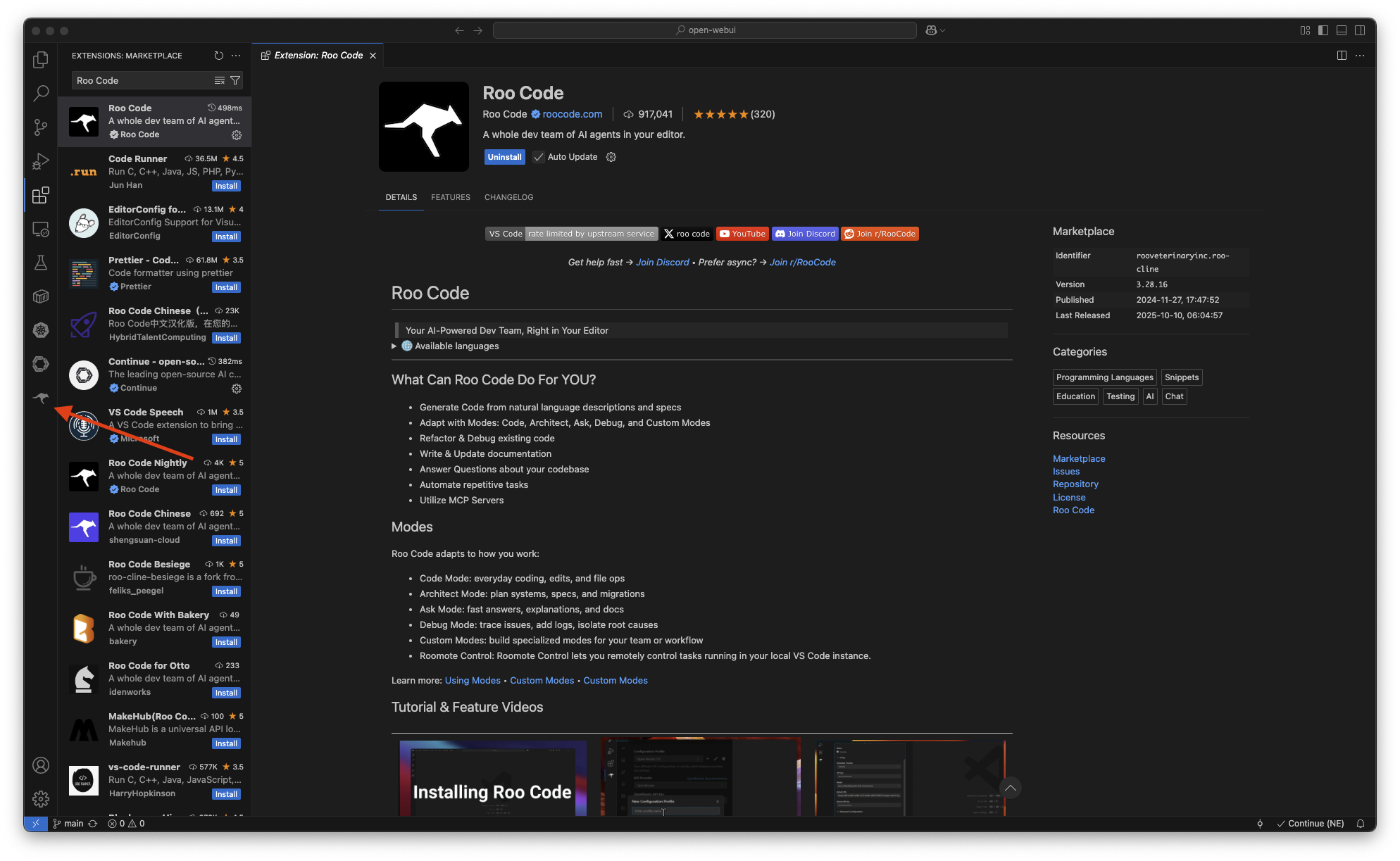
After installation a new icon with the Roo Code logo appears in the left sidebar. Click it to open the Plugin pane.
Step 4 – Roo Code Settings
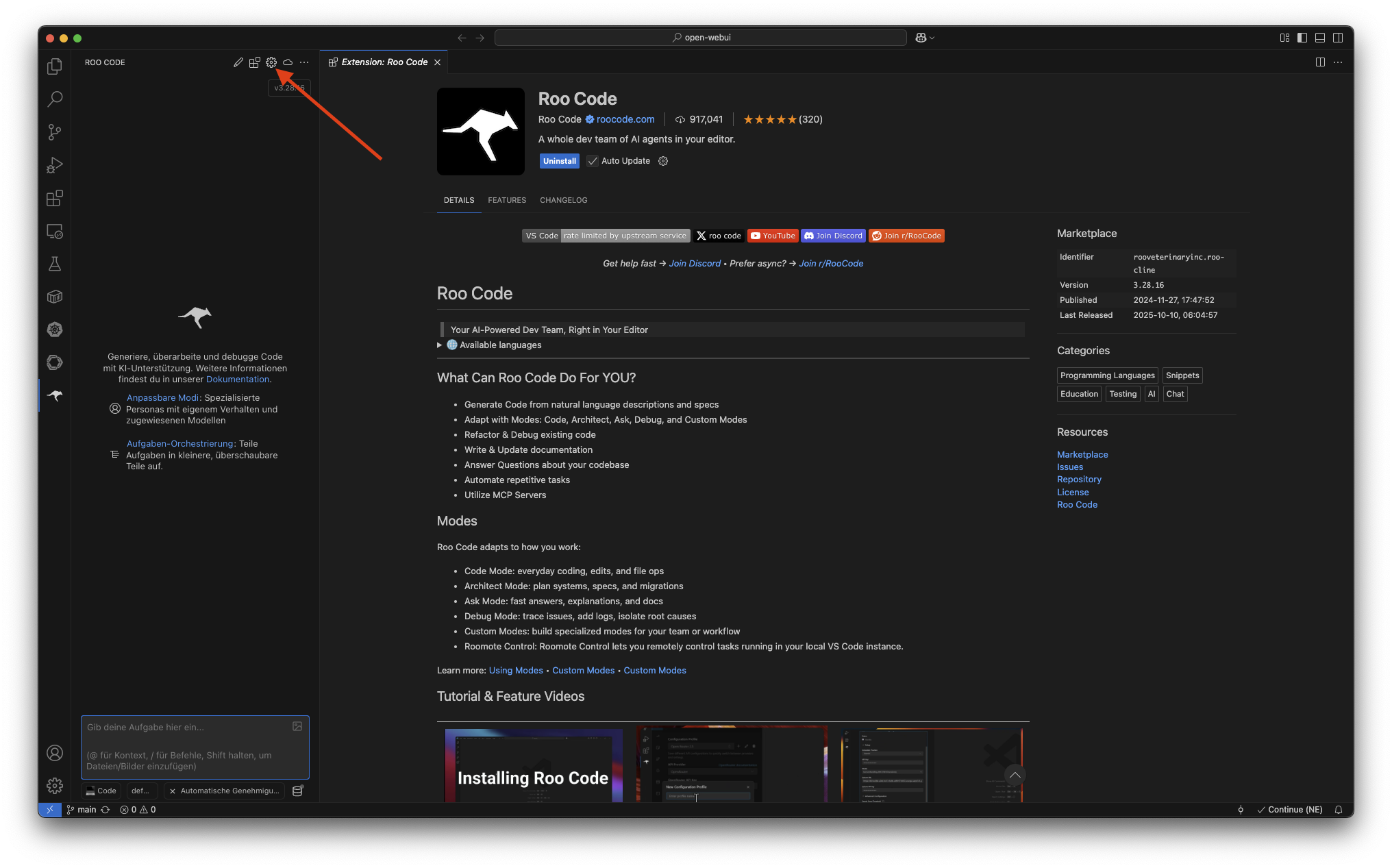
Open the Roo Code Settings by clicking the gear icon in the plugin pane.
Step 5 – Configure Roo Code
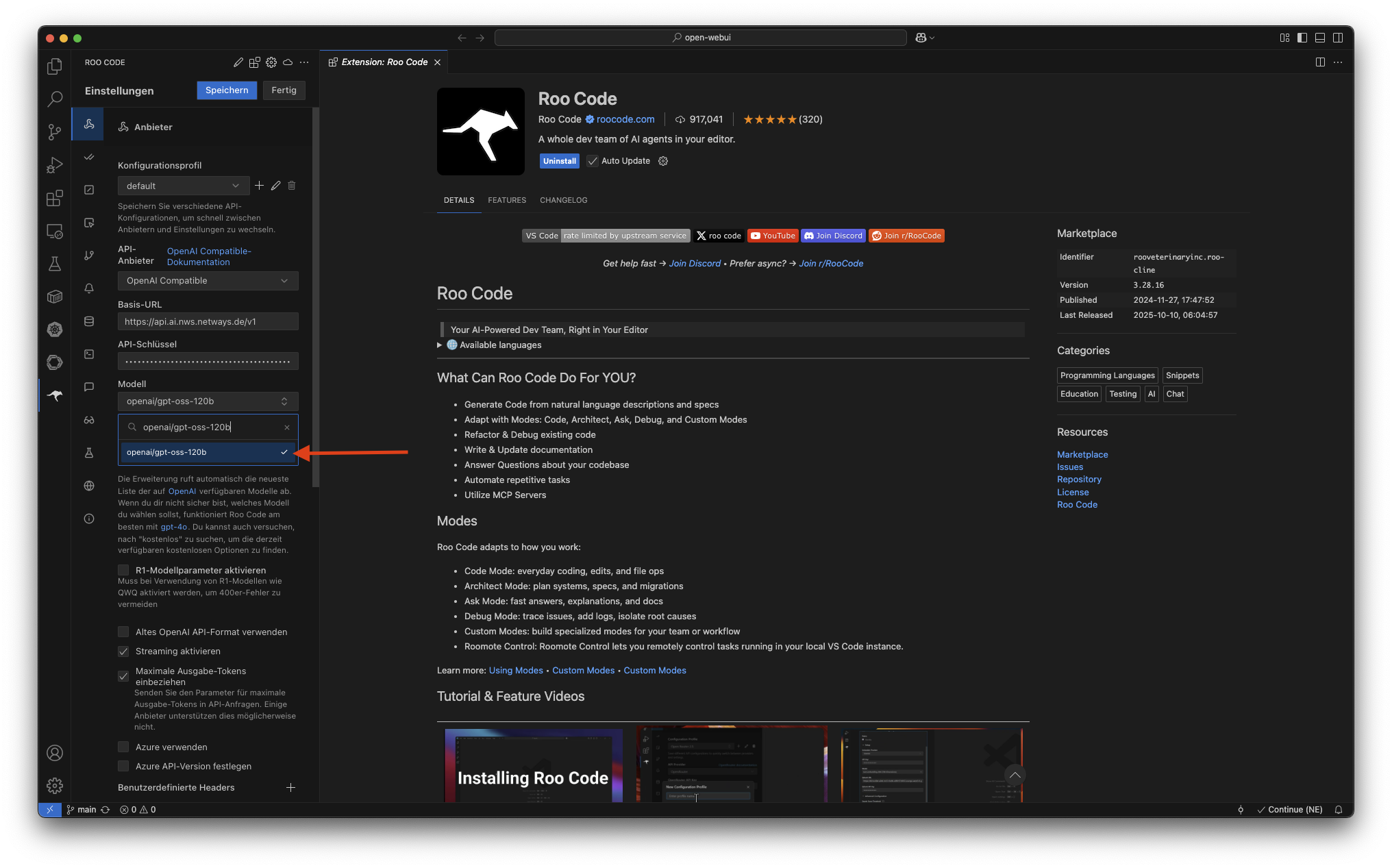
Under API Provider select OpenAI Compatible. Then enter the Base URL https://api.ai.nws.netways.de/v1 and your personal API Key. Under Model specify the model ID: openai/gpt-oss-120b.
Step 6 – Price and Token Settings
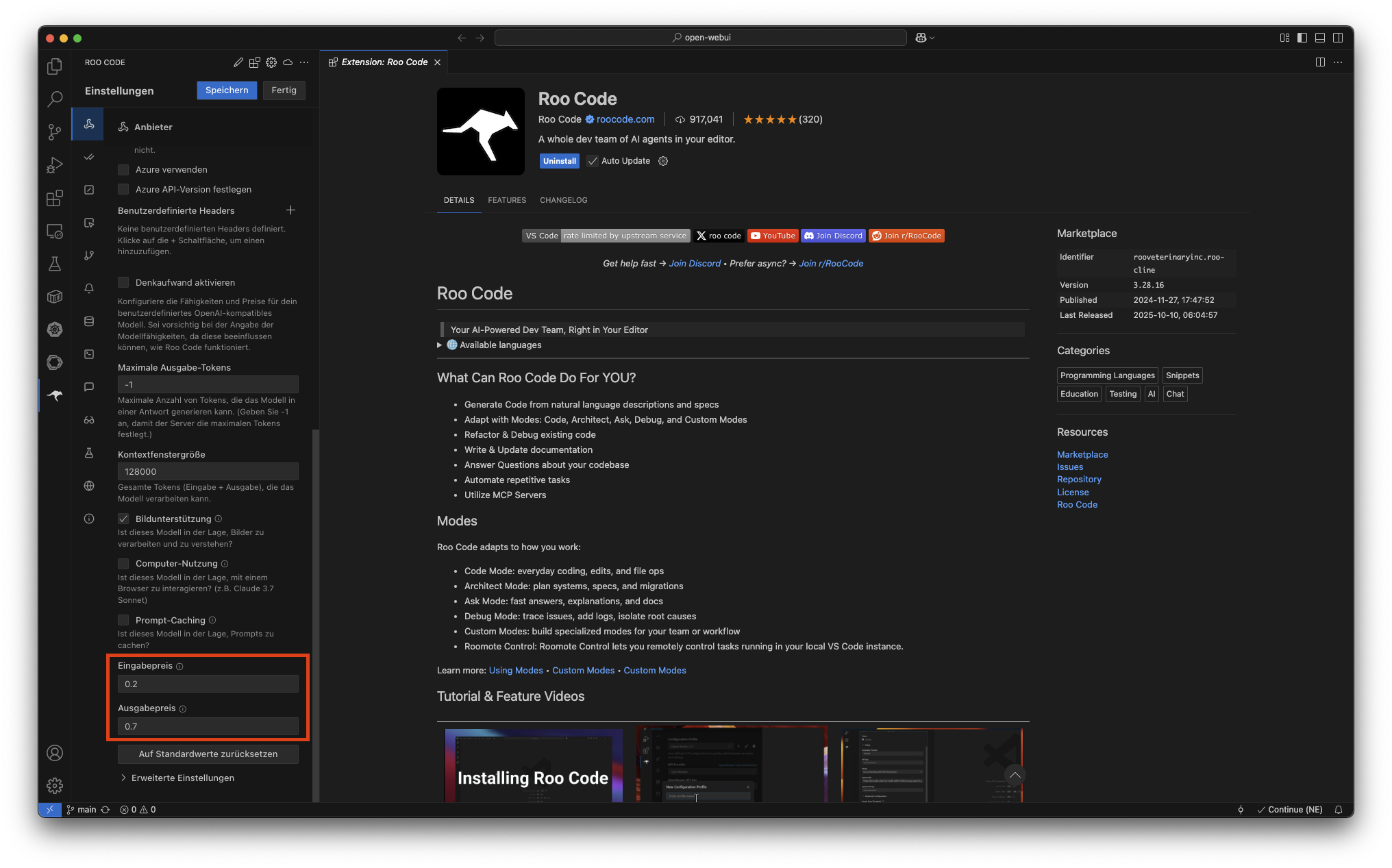
Optionally you can set the maximum number of tokens to be processed and default cost values per request (input and output price). These values are used for cost estimation and do not affect the actual API fees.
Step 7 – Using Roo Code Modes
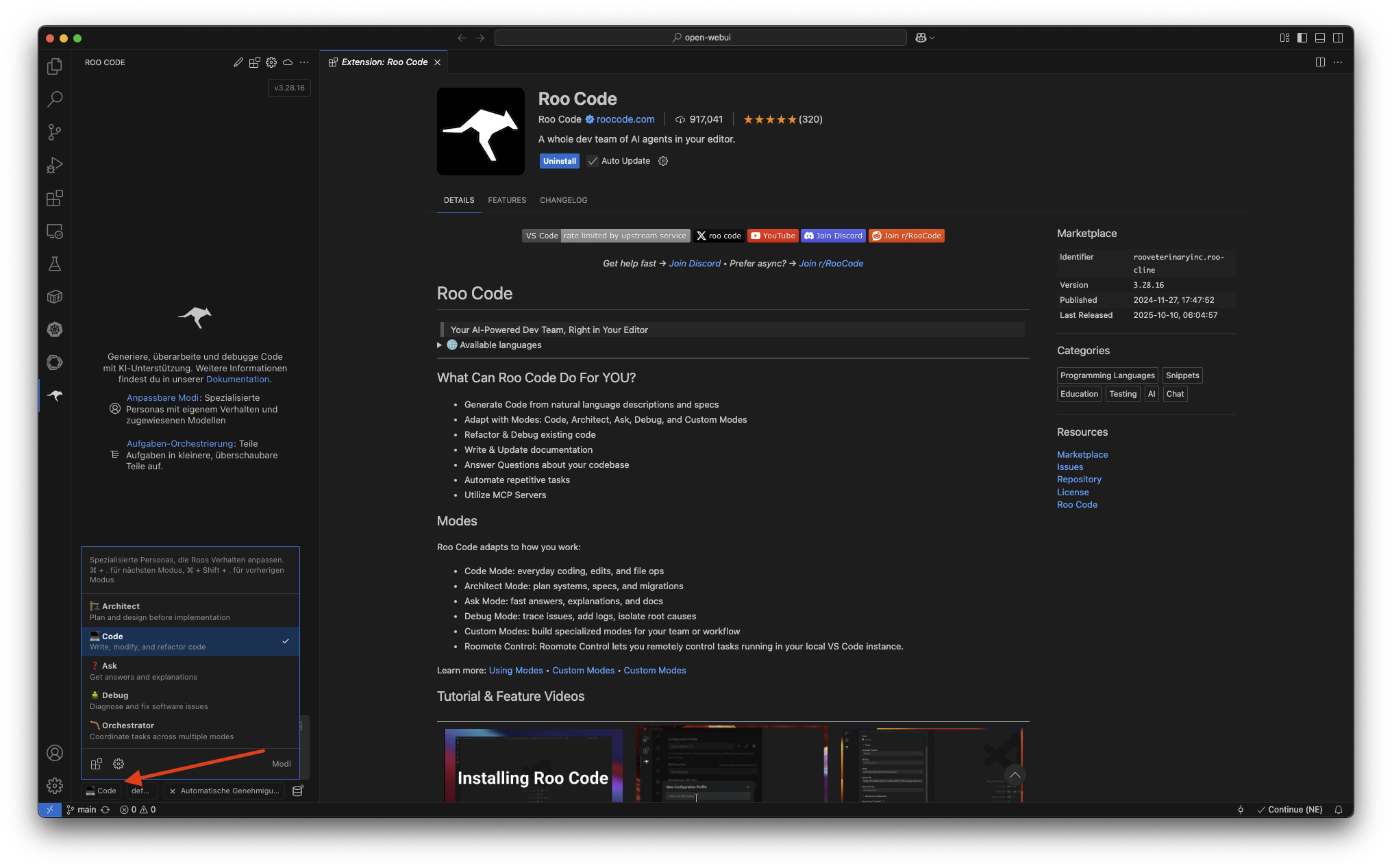
You can switch between different working modes:
- Architect: plans and structures code before it is implemented.
- Code: generates and edits source code.
- Ask: answers questions about code or projects.
- Orchestrator: combines multiple agent modes.
Choose the mode that best fits the current task.
Step 8 – First Interaction
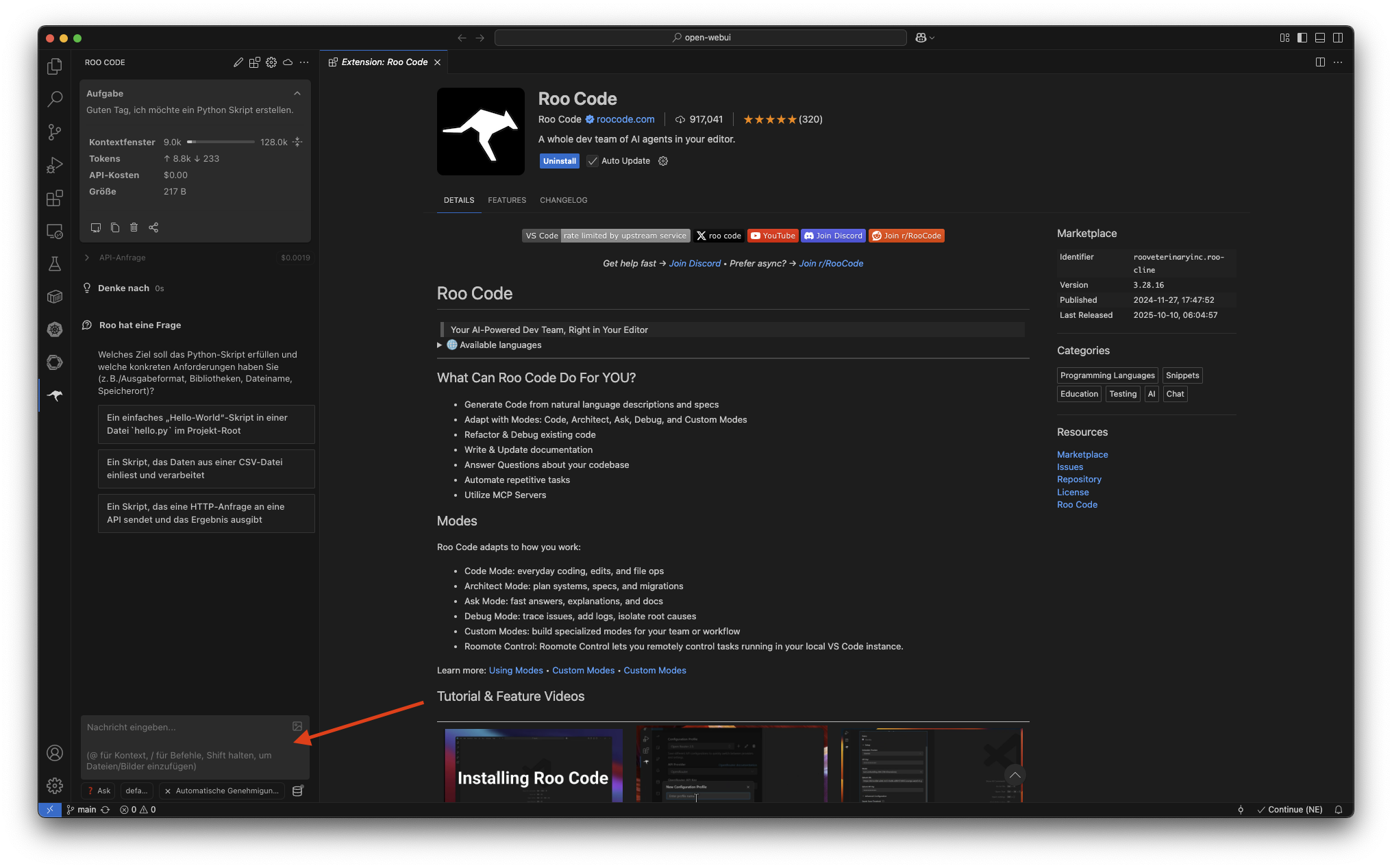
In the input field at the bottom you can now enter the first instruction, e.g.:
"Good day, I would like to create a Python script."
Roo Code processes the input and displays the generated code or answer directly in the panel.
Step 9 – Check Proxy Settings (optional)
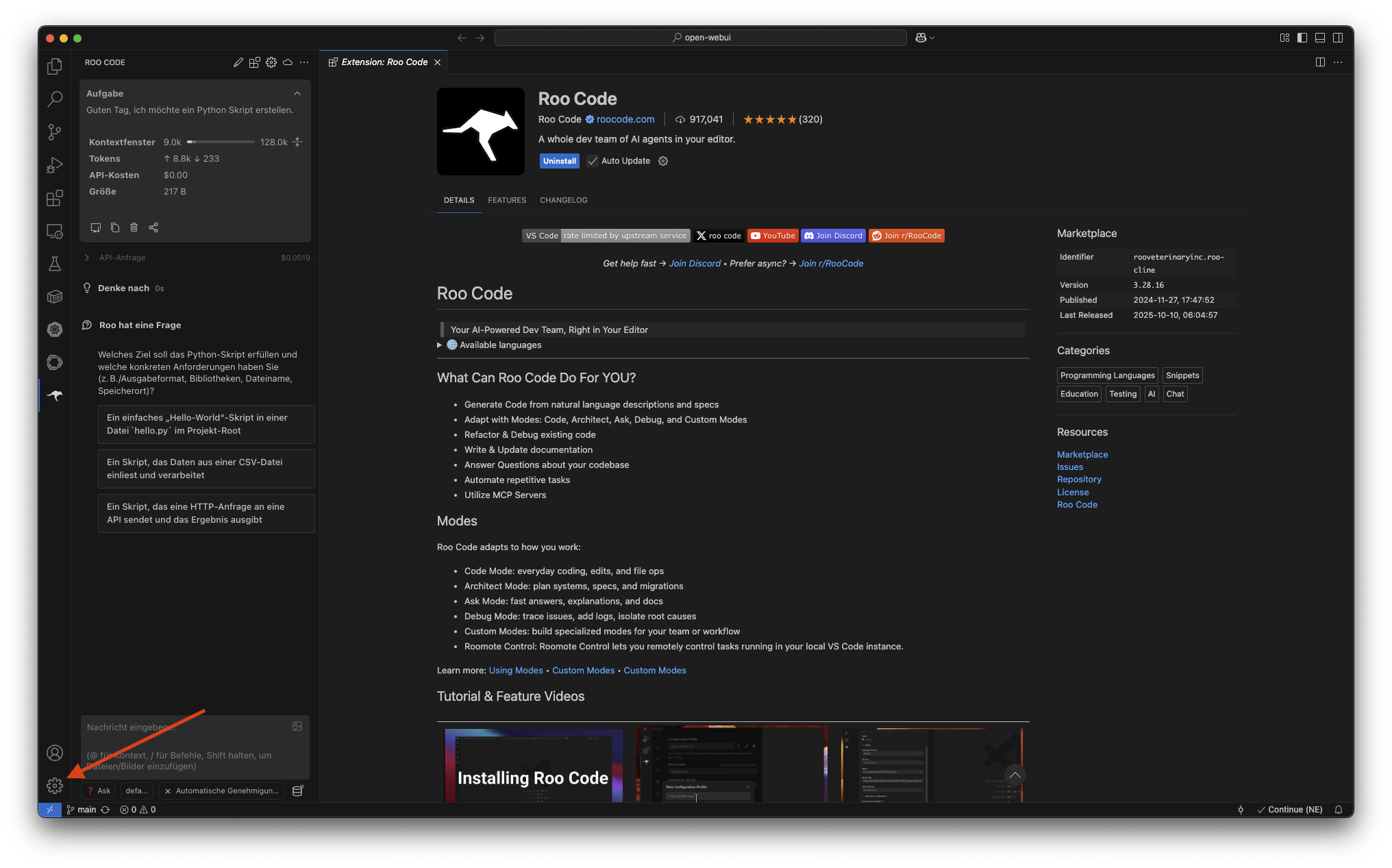
If Roo Code cannot connect to the API, you can check the Proxy Settings in VSCode. Click the gear icon at the bottom left corner.
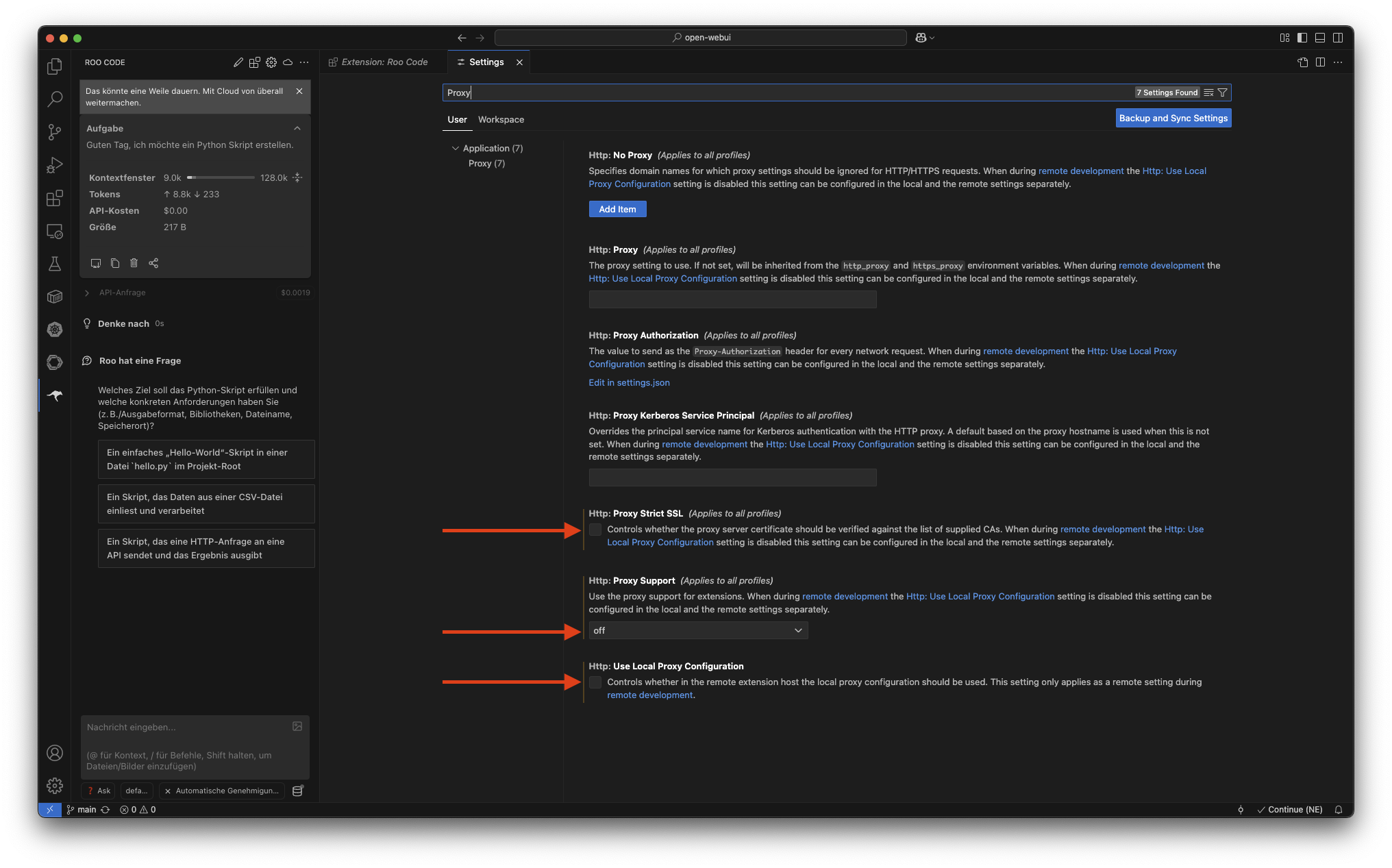
Search for Proxy and ensure that:
- HTTP: Proxy Strict SSL is disabled
- HTTP: Proxy Support is set to
off - HTTP: Use Local Proxy Configuration is disabled (enable it if you work locally)
These settings prevent connection problems with APIs.